How to Create a Blog in WordPress
Step 1: Log in to Your WordPress Dashboard
-
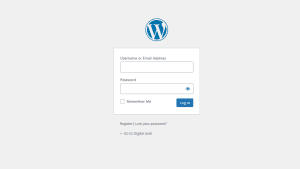
Go to your WordPress login page by typing /wp-admin at the end of your website’s URL (e.g., https://yourwebsite.com/wp-admin).
-
Enter your username/email and password, then click Log In.
Step 2: Navigate to Posts
-
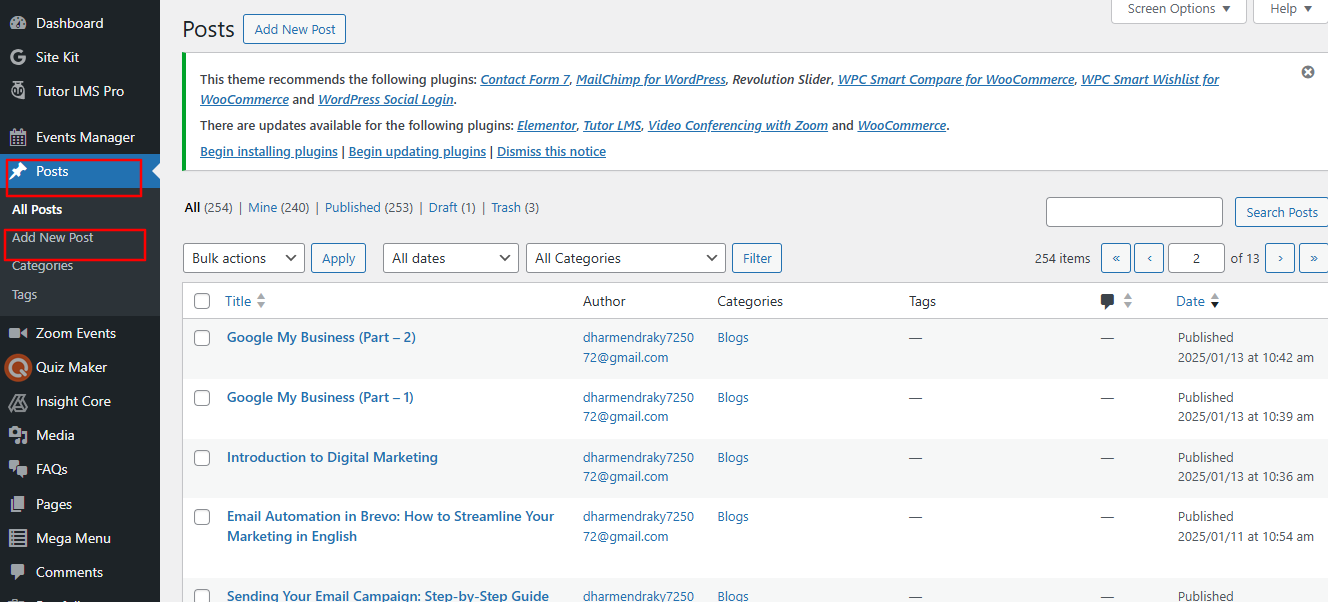
Once logged in, go to the Dashboard.
-
In the left-hand menu, hover over Posts and click on Add New.
Step 3: Add a Title for Your Post
-
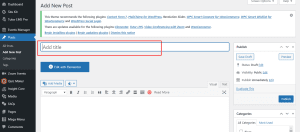
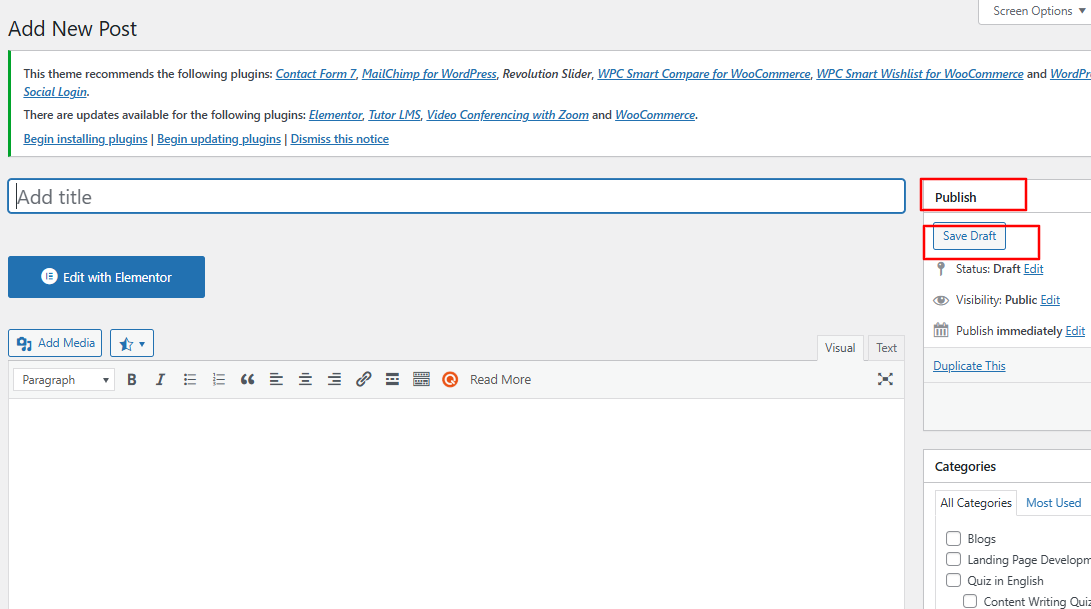
At the top of the page, you’ll see a field labeled “Add title.”
-
Enter the title of your post here.
Step 4: Write Content for Your Post
-
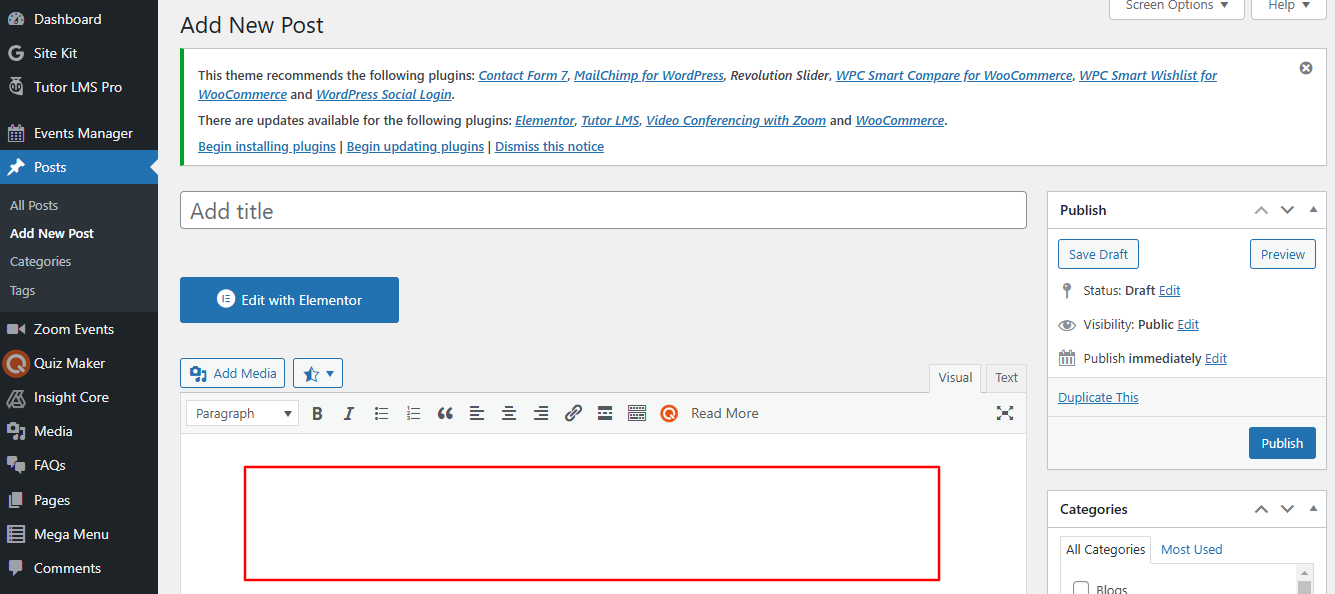
Below the title, you’ll see a block editor where you can start typing your content.
-
Each paragraph, image, or heading is a separate block.
-
Use the + button to add new blocks for text, images, lists, or other content types.
Step 5: Add Images to Your Post
-
To add an image:
-
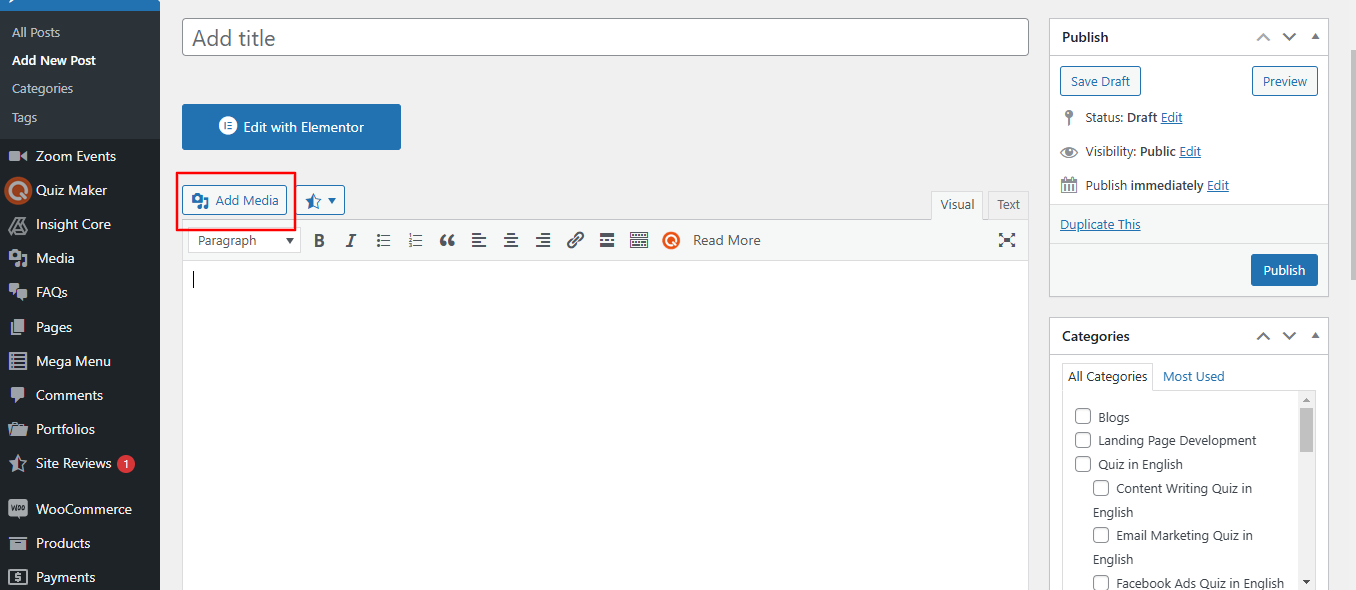
Click the + button and select Image.
-
Upload an image from your computer, choose one from the media library, or insert an image via URL.
-
Once added, you can resize the image, add captions, and align it as needed.
Step 6: Assign Categories and Tags
-
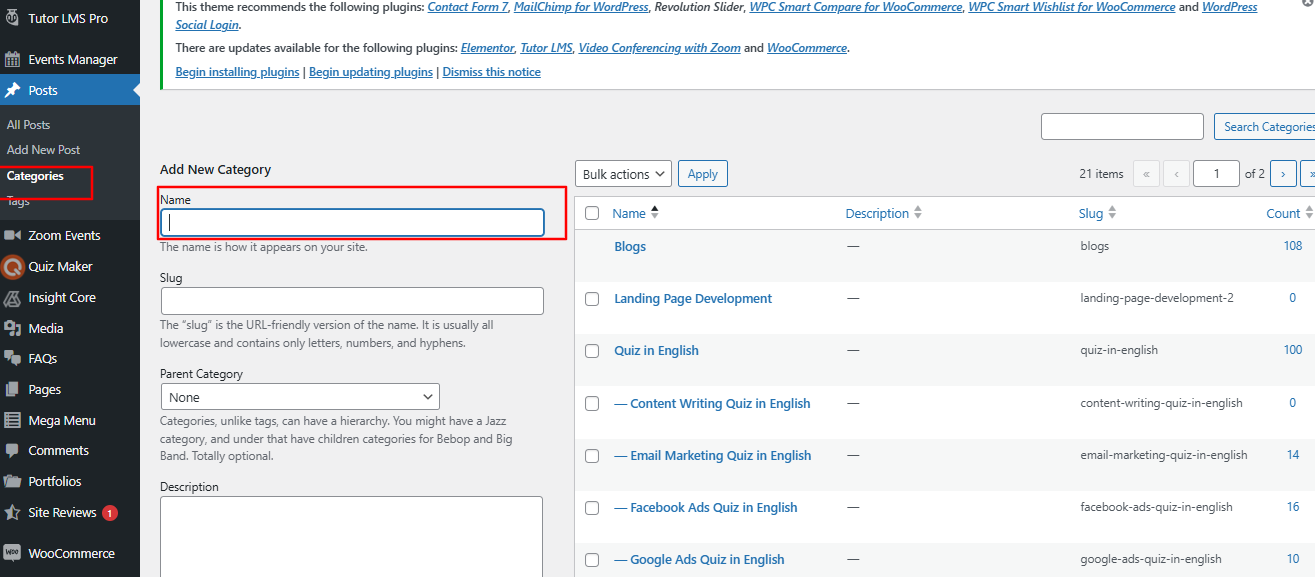
In the right-hand sidebar, locate the Categories section.
-
Click “Add New Category” or select an existing category.
-
Below categories, you’ll find the Tags section.
-
Add relevant tags to help organize your post.
Step 7: Set a Featured Image
-
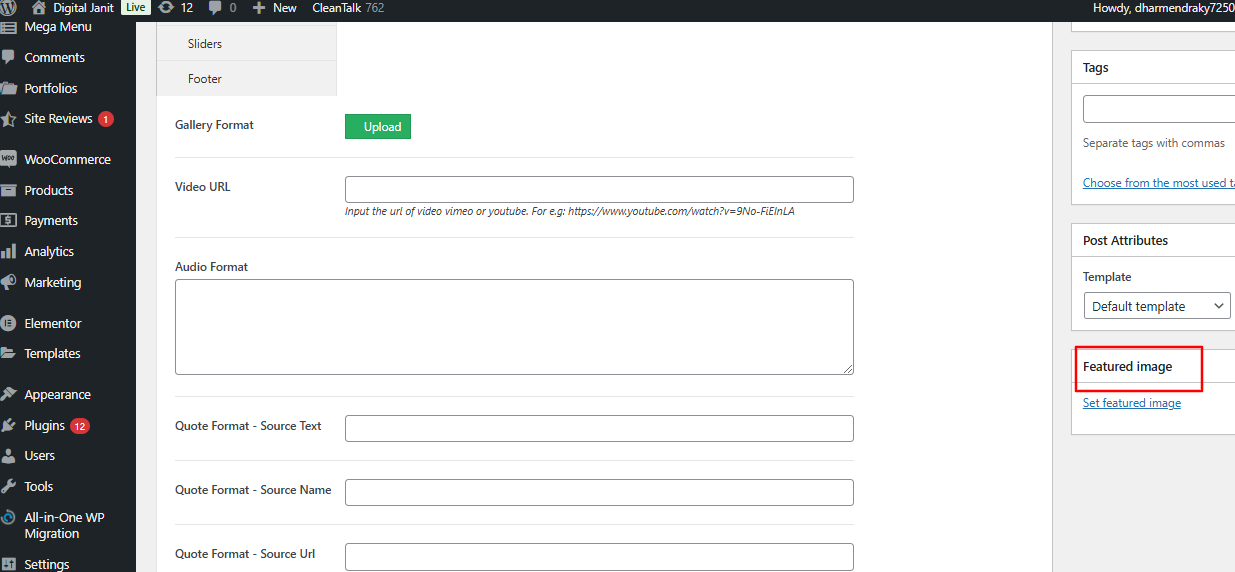
Scroll down to the Featured Image section in the right-hand sidebar.
-
Click Set featured image and choose an image from your media library or upload a new one.
Step 8: Publish Your Post
-
Once you’re satisfied with your post, click the Publish button.
-
Confirm the action in the dialog box by clicking Publish again.
Additional Tips
Save Draft: If you’re not ready to publish, click the Save Draft button to save your progress.
Schedule Posts: Use the settings under the Publish button to schedule your post for a specific date and time.
Revisions: If you need to make edits later, go to Posts > All Posts, find your post, and click Edit.